 v.7
v.7
Make sure your connection is secure ("httpS:" instead of just "http:"). Click the logo above for a secure connection.
v.7
Make sure your connection is secure ("httpS:" instead of just "http:"). Click the logo above for a secure connection.
Published on: 02/11/2026, 05:09 PM by Software Developer
I have been creating How To's / Tutorials for the CMS, and I am doing screenshots and the n just uploading it within the specific blog post.
It displays okay on a Desktop or Laptop.
However, the "left tp right" phenomenon displays on smaller screens.
- You can easily test your Installation by shrinking your browser screen to the smallest it will allow, and you can see this ...
Let's use the Blog Post below as an example / model: :-)
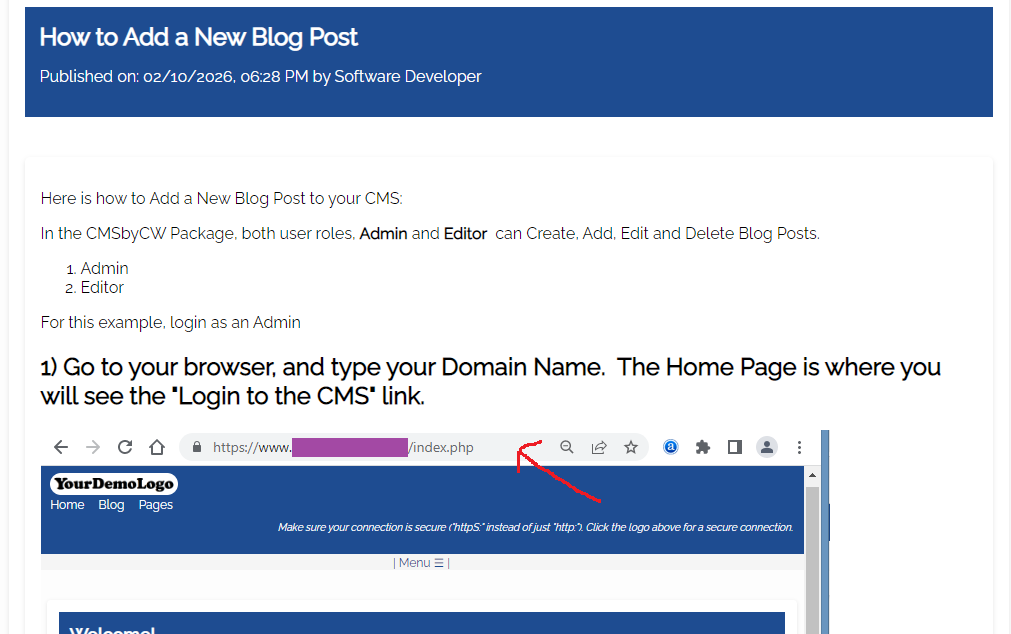
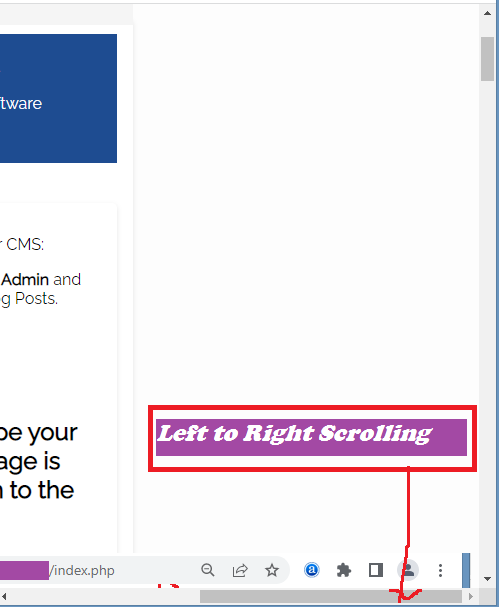
For my previous Tutorial Blog Posts, I do not mind this, as I want the screenshots to display in actual size so that the Customers can see the example pictures / screenshots (usually when one is doing website development, you do it on a desktop or laptop, seldom on a phone :-) )
Anyway, the CMS is not broken, it's just how images are displayed by default, which is its "actual size".
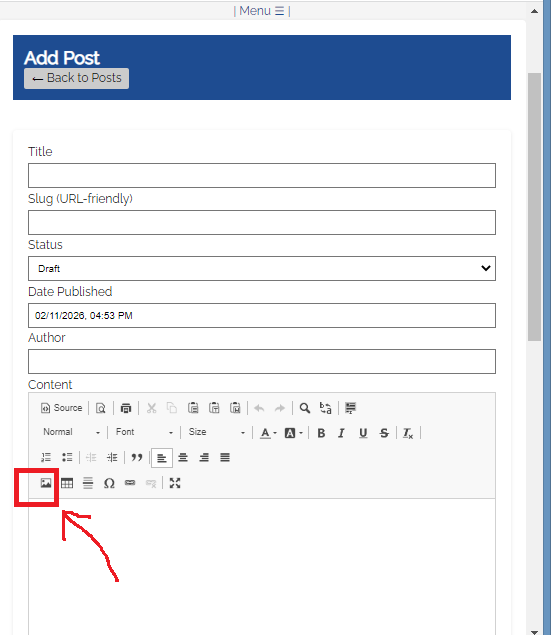
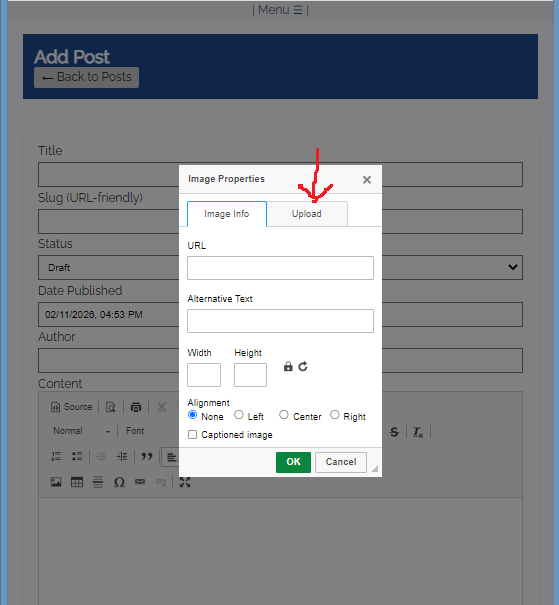
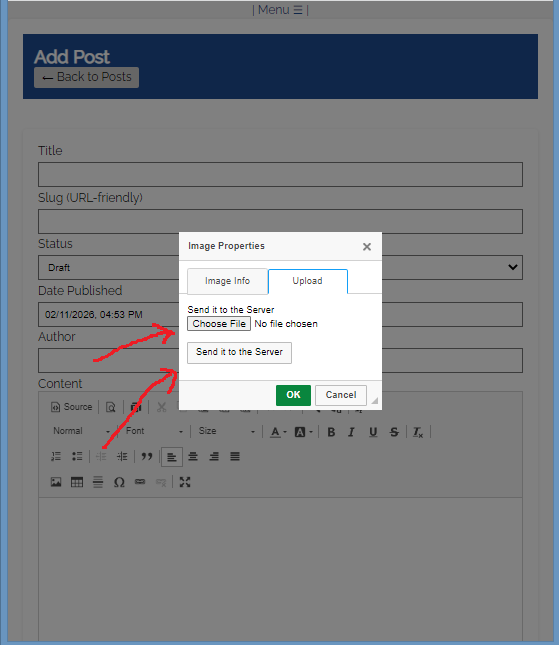
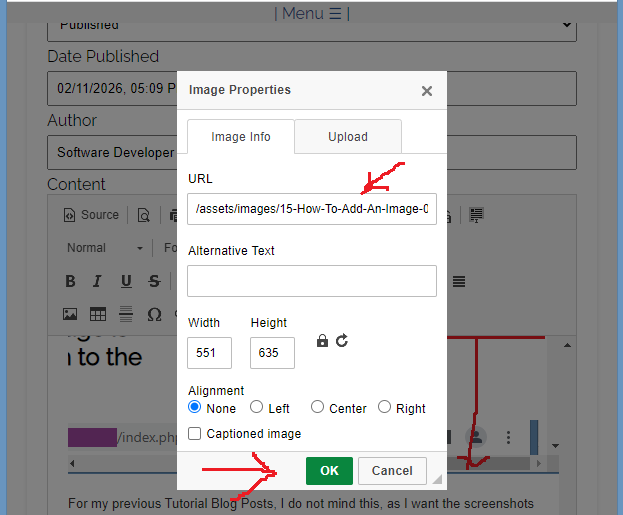
Let's use this Post for this example: (Add a Post, or "Edit" a Post)
Or go to the Help Page for other Documentation or Tutorials:
Thank you for visiting our website!