 v.7
v.7
Make sure your connection is secure ("httpS:" instead of just "http:"). Click the logo above for a secure connection.
v.7
Make sure your connection is secure ("httpS:" instead of just "http:"). Click the logo above for a secure connection.
Published on: 02/11/2026, 03:13 PM by Software Developer
Here is how to Add a New web Page to your CMS:
In the CMSbyCW Package, both user roles, Admin and Editor can Create, Add, Edit and Delete web Pages.
For this example, login as an Admin
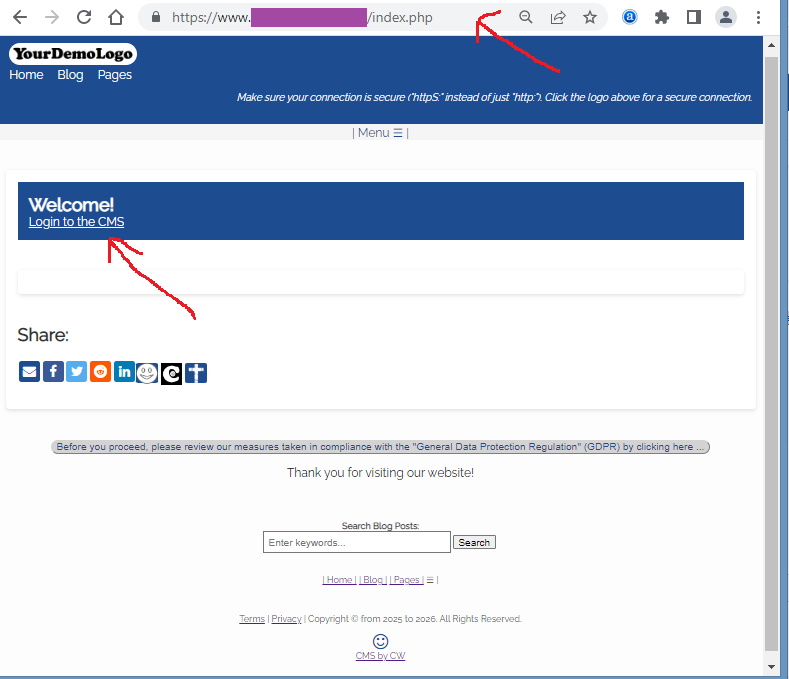
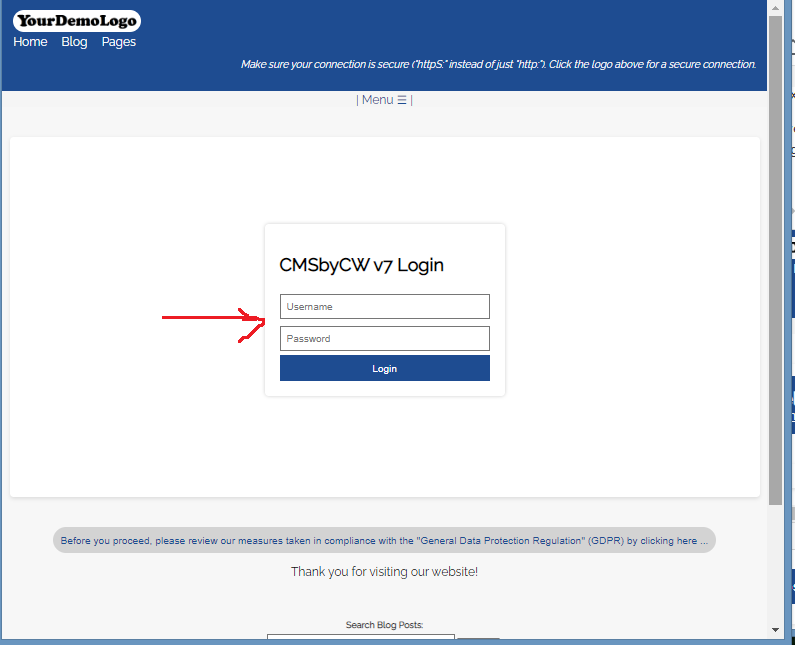
Just type your Admin Username, Password, and click the Login Button
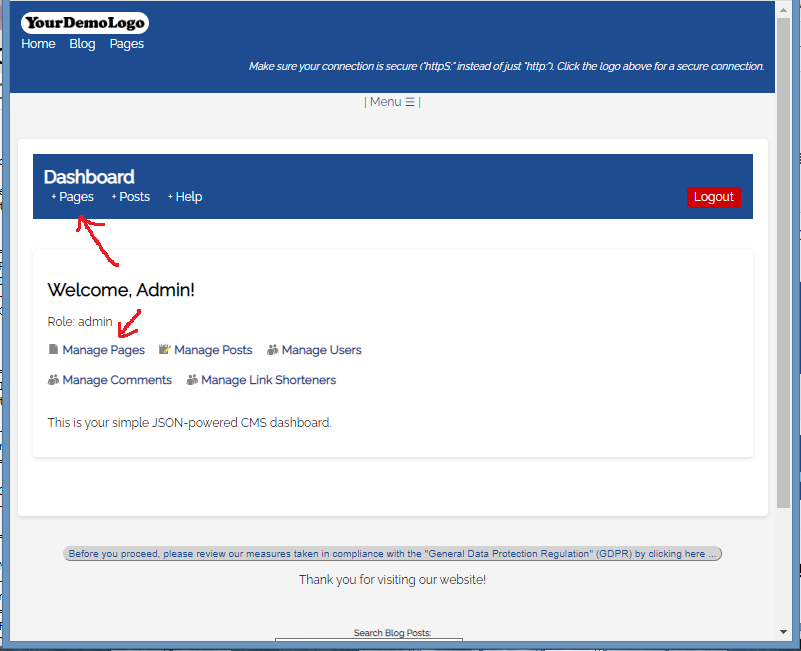
(Notice that I have also included a "Help" link in the Dashboard header, so you always have a direct link to the CMSbyCW documentation or FAQs, in case you need that resource).
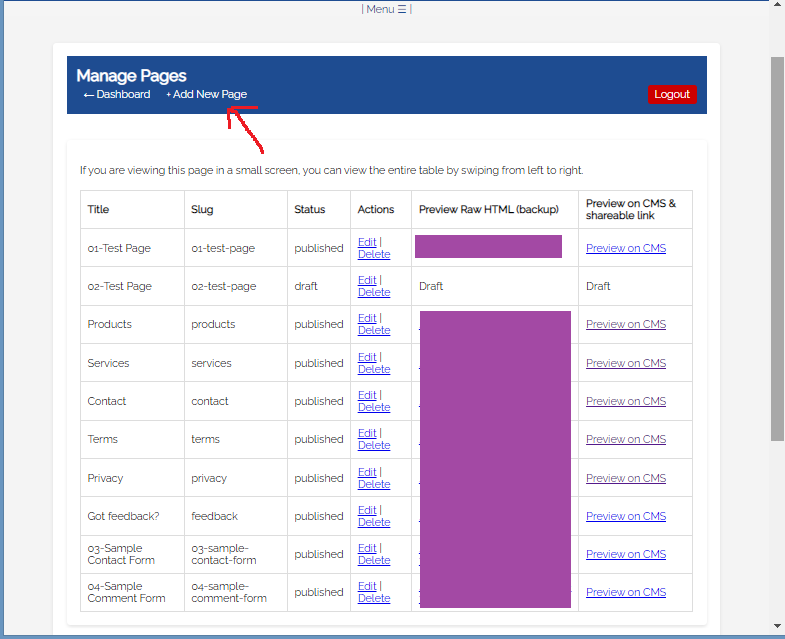
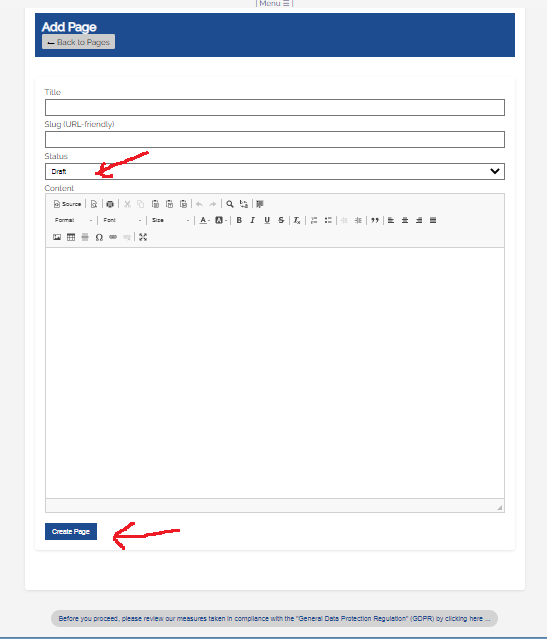
Type the title you want for your Page. For example 01-Test Page
From the above example, your Page "Title", you can type on the field "01-test-page", or whatever slug you want the web Page to get anchored to. .
This refers to your Page Status, whether it is in "Draft" Mode, or "Published" Mode.
- You have to select "Published" mode for the new web Page to display. Also you will have to use the "Preview on CMS & shareable link" and copy that link to wherever you want that link to display.
- As an example: under Manage Pages > Title >
If the Title of the page is "01-Test Page"
- the Slug is: "01-test-page"
- the Status is "published"
- the "Preview on CMS & shareable link" is "https://www. YOUR WEBSITE .com/page.php?slug=01-test-page"
- you will copy that shareable link if you want the Page to display on the front end of your website.
- When you select "Draft", it will not display on your website. Draft mode can only be viewed when you are logged in, and you can change the Status to "Published".
In the Content Box, you have options on the Three Rows with Icons, (just hover your mouse on the Icons, so it displays the options you have, like
First Row:
"Source" - you can toggle between WYSIWYG (What You See Is What You Get) Mode, or Source Code Mode.
"Preview"
"Print"
etc. You can test and experiment on it too to get familiar :-)
The Software Package comes with 1 Test Page that has a Status of "Published" and another Test Page that was created, but has a Status of Draft. You have the option to remove those 2 Test Pages, since I have already added also the "Help" module for tutorials.
The following are template pages, that ALL websites need to have
7.1) Privacy Policy
7.2) Terms of Use or Terms of Service Policy
Generic Pages that websites usually have, like:
7.3) Home Page = index.php
7.4) Products
7.5) Services
7.6) Contact
The above web Pages are "placeholders" or "templates" so that I can create links to it on the Menu or Navigation at the top and bottom pages. All you have to do is fill those pages with your own content.
7.6) Got Feedback?
I initially did the "comment form" per blog post, and then "comment form" on select web Pages. I then redesigned this because there is such a thing as bots (or some humans) who do comment form spamming. So I removed it. But, there still has to be a way for website visitors to leave feedback or comments. So I decided to make this a two fold type of set-up
7.7) Sample Comment Form
I decided to include this with the Software Package, because when I began doing web development, this was the type of thing that I had to figure out or pay for someone to build it for me. More than 10 years later, I figured it all out, websites just need a way to get messages from website visitors without having to display their contact email address on the website (because this usually becomes a spam magnet). And optionally, for Admins to have that capability to decide which comments to approve or delete (because website owners are responsible for what gets published on their websites).
All comments default to pending. Designed it that way for security. I've worked on other CMS that had a functionality of "automatically closing comments." For bots and spammers who crawl websites to exploit vulnerabilities, those with open "comment forms" tend to automatically post spam, and if you're not babysitting your website, you might find spam getting posted on your website, and it's a pain in the neck to clean up.
7.8) Sample Contact Form
I also decided to include a Sample Contact Form, so that website visitors can send inquiries to the website owner. I also included security measures on this form, capturing meta data, so that each contact / comment form submission, ALSO captures the commenter's metadata. That way Admins can somehow have an idea on determining whether a contact or comment form submission is legitimate (and not a bot).
Example, if your website is only doing a "Service" type of work in the Austin Texas area, and someone sends you a message requesting for a detailed Quote and Request for Information, on the Comment / Contact Form email message itself, the Admin will be provided the metadata of the Sender / Commenter. So if you see, from the metadata, that this is not coming from a location that you do not serve (I.P lookup), you can do what's necessary.
I also know that there are companies that are Software as a Service, for these types of forms (they collect Leads). So, me personally, I do not want another business knowing who is contacting my website. So having your own form FROM your own website, not just protects you, but protects the consumers that will be sending you those comments or will be contacting you.

You will see links to these Pages, like:
Home --> goes to your home page, index.php (you can edit this via FTP, if you want to add other verbiage to it)
Product --> Goes to your Page for Products (just type and fill with your own contents, via your Dashboard)
Services --> Goes to your Page for Services (just type and fill with your own contents, via your Dashboard)
Blog --> You don't have to change anything on this as it serves like a Table of Contents of your blog Posts. It's designed and programmed to display the latest blog post on top of the blog page.
Contact --> (just type and fill with your own contents, via your Dashboard - you can use the Instructions and Sample Contact Form, if you would like)
Pages can be viewed when you add a direct link to it. Unlike Posts, Pages do not automatically display.
The other Sample Pages are informational or optional only. You can either use them, or not. You only can choose to change the "Status" of those Sample Pages to "Draft".
If you notice the column on "Raw HTML (backup)". These are also just additional functionality to automatically create raw HTML for both Posts and Pages, for backing up content.
How to Add an Image to a blog Post or web Page
Or go to the Help Page for other Documentation or Tutorials:
Thank you for visiting our website!